Using the iPad and iPhone app
Browse through cards with letters and try to recall the codeword for each letter. If you are not sure the answer reveal the back of the card to see and hear the correct codeword.
Note
The history of browsed cards is deleted at the start of each learning session.
Viewing order
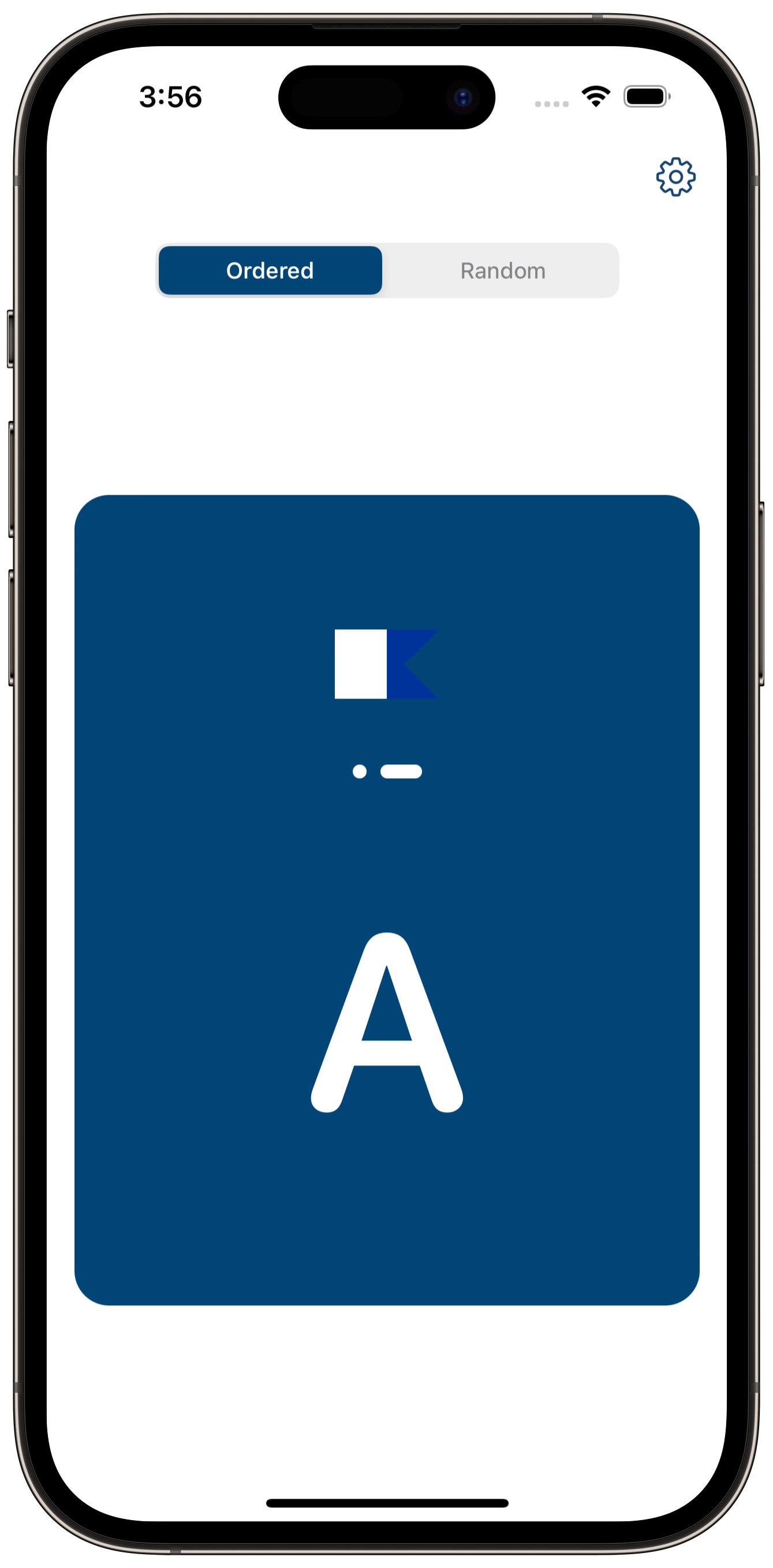
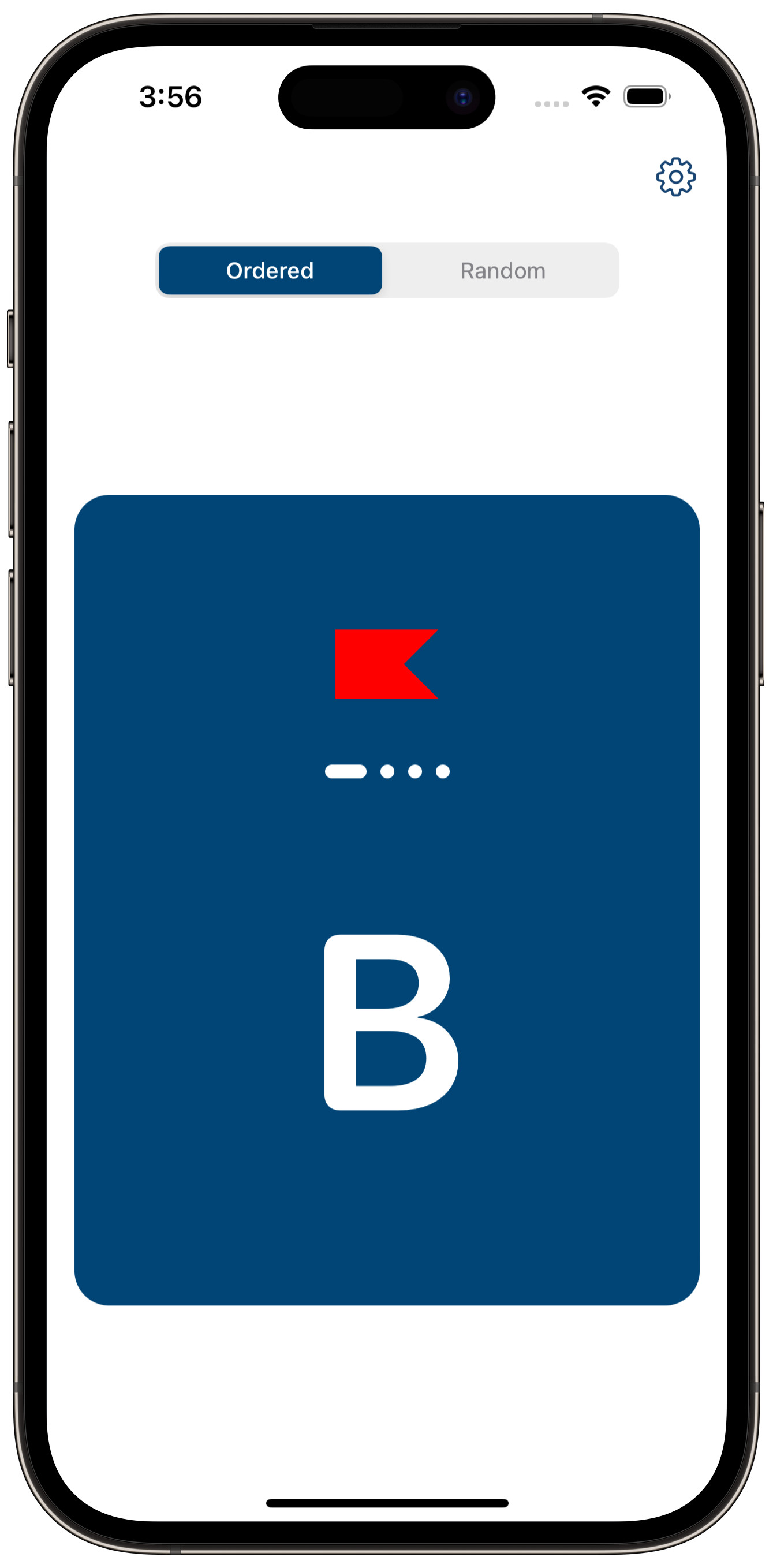
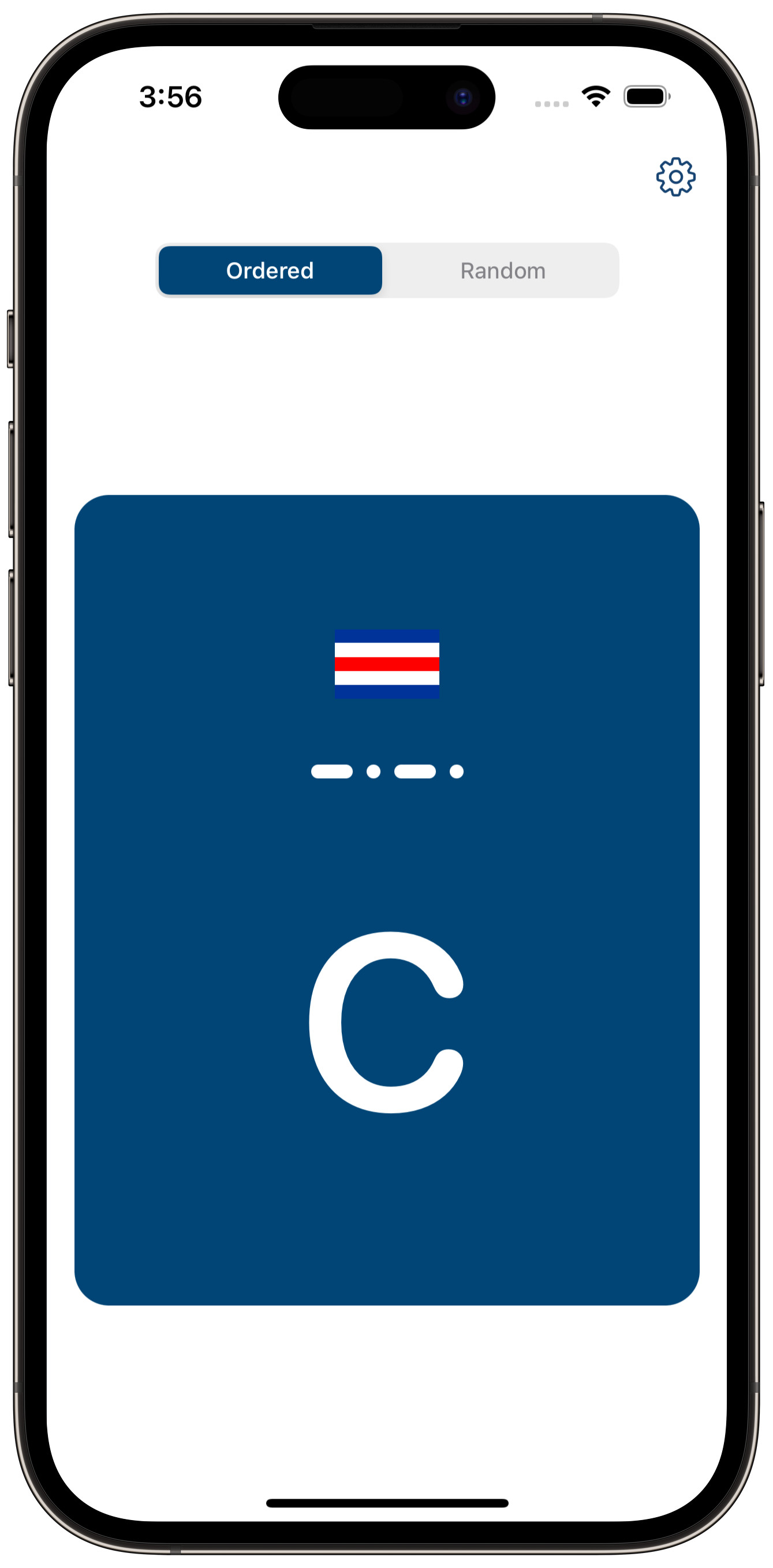
Browsing cards
|
|
|
Checking the codeword
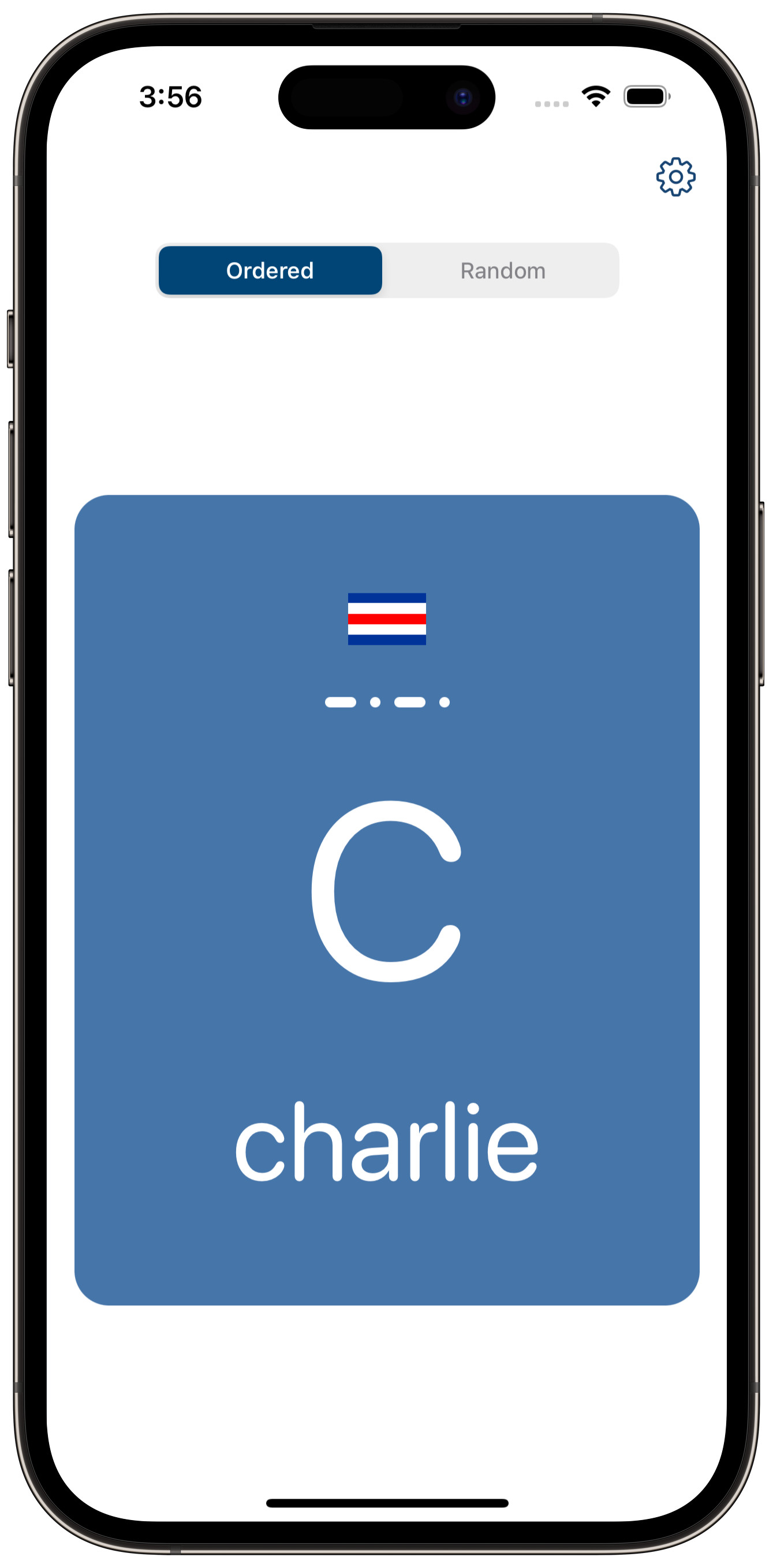
Tap the card to reveal and hear the codeword.
Note
The sound can be muted in settings.
Keyboard input
The Keyboard button lets you add a specific card to the queue without changing its current order.
To use this feature:
Tap Keyboard on the main screen.
Tap the letter or digit you want to practice.
The selected card is inserted at the current position in the queue.
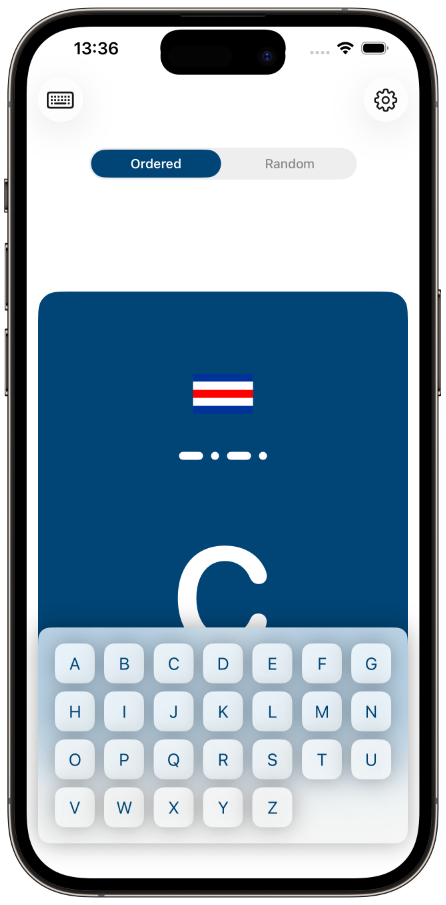
This feature is useful when you want to:
practice a particular character immediately,
review difficult letters or digits,
continue using the existing queue while adding extra practice items.
Transcription
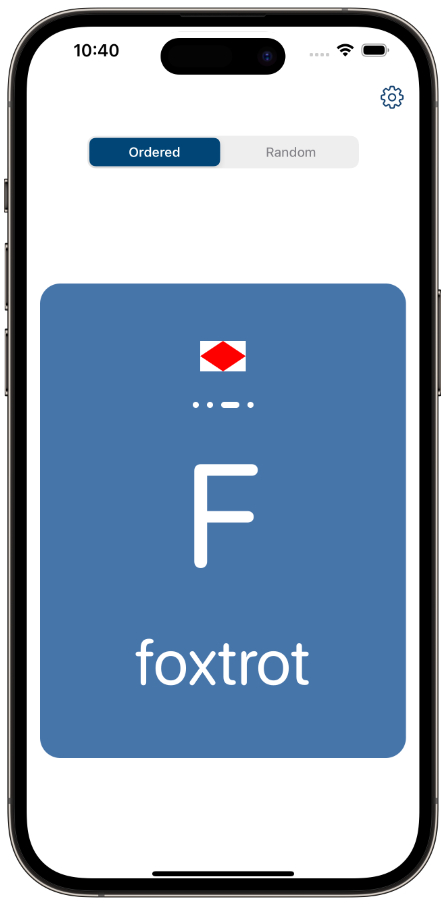
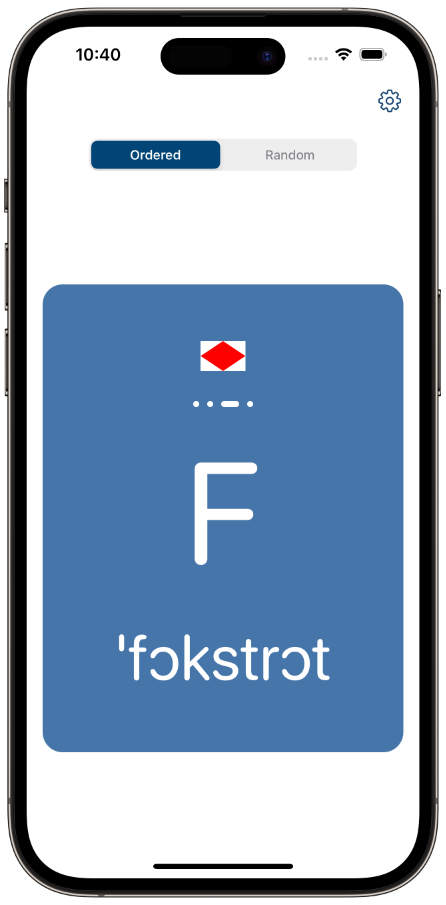
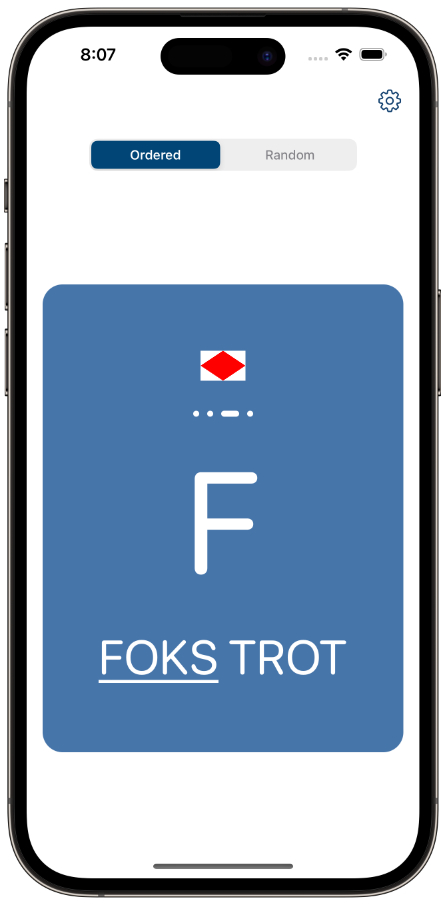
The application presents the pronunciation of codewords using a transcription system.
In the application settings, you can choose one of the three available transcription systems: IPA (International Phonetic Alphabet) transcription, ICAO (International Civil Aviation Organization) transcription or plain english.
|
|
|
Changing settings
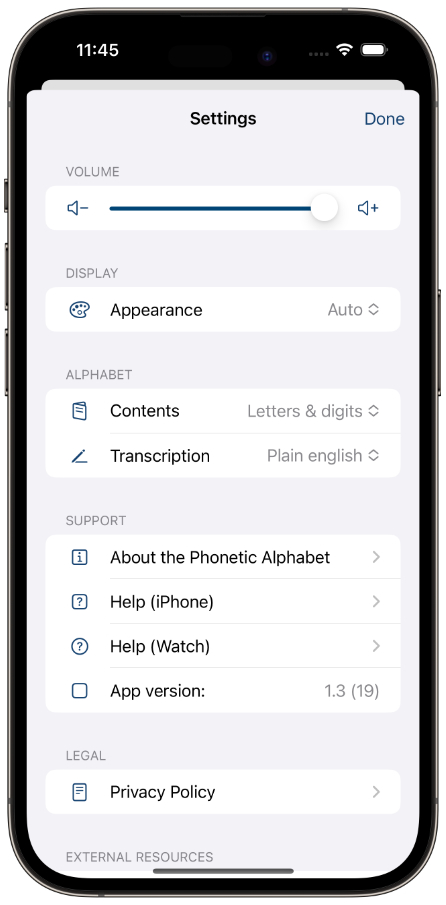
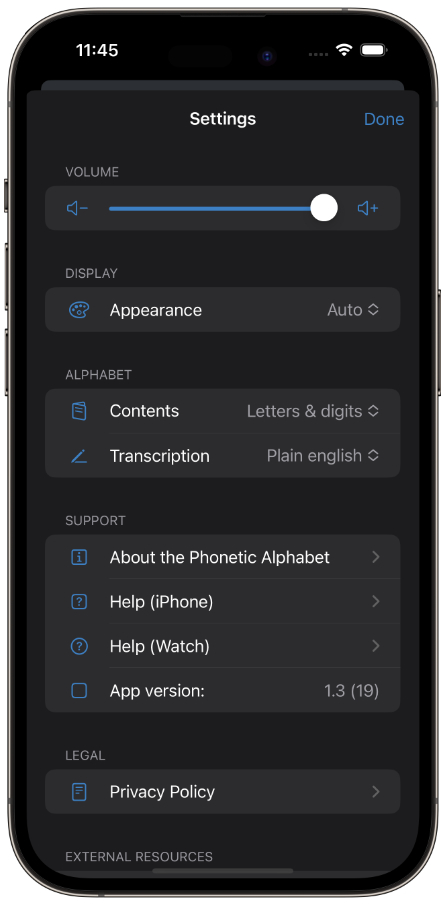
Long press the card or tap the gear icon to reveal the settings panel.
|
|
Available settings:
Select the Light, Dark or Auto segment of the Display Appearance selector to set the required display mode. In Auto mode, the app display mode is set according to iOS system settings.
Move the Volume slider left or right to decrease or increase the sound volume. The sound can be muted altogether by moving the slider to the leftmost position.
Select a set of letters, numbers or letters and numbers using the ALPHABET - Contents selector
Select a codeword transcription system using the ALPHABET - Transcription selector
Pull the view down or Tap the Done button to exit the settings panel.